


 Written by Royalppv
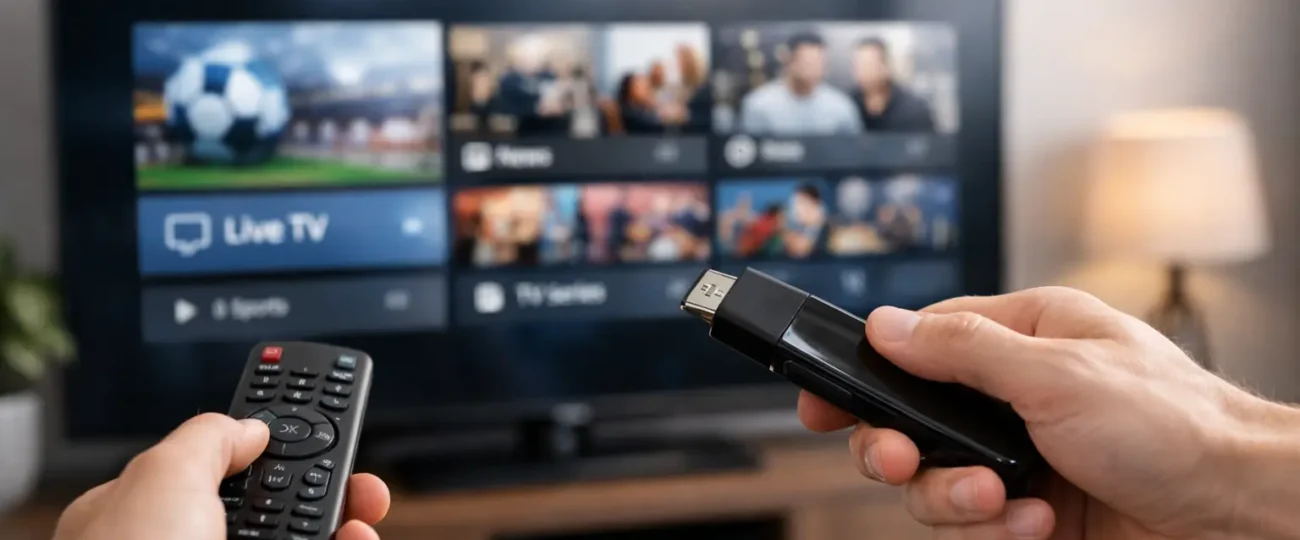
The good news is that learning how to install IPTV on Smart TV is usually much easier than people expect. In most cases, you are only a few minutes away from turning your TV into a full live TV and on-demand hub without the cost and hassle of traditional cable.
If you have ever looked at IPTV setup screens and thought they were too technical, that is exactly where most people get stuck. The process is simple once you know which app your TV supports, what login format your provider gives you, and where to enter the details correctly. Get those three parts right, and setup is quick.
The first thing to understand is that Smart TVs do not all work the same way. A Samsung TV uses a different app store than an LG TV, and Android TV or Google TV gives you more app flexibility than some closed systems. That means the exact app name may change, but the setup logic is nearly always the same.
You start by connecting your Smart TV to a stable internet connection. Wi-Fi works for many homes, but if you want stronger performance for live sports, PPV, and HD or 4K channels, an Ethernet cable is the better choice. IPTV quality depends heavily on connection stability, so this part matters more than most people realize.
Next, open your TV’s app store and search for an IPTV player. In many cases, Smart TVs do not come with a built-in IPTV app, so you need to install a compatible player first. Common app types include IPTV Smarters-style players, Ib Pro Player IPTV apps, XCIPTV-type apps, or M3U playlist players. Your provider will usually tell you which one works best with your device.
Once the app is installed, open it and choose the login method. This is where users often hesitate, but it is straightforward. Most IPTV services provide one of these formats: an M3U URL, Xtream Codes login details, or a portal URL and MAC-based setup. You do not need all three. You only need the one your provider gave you.
If your subscription includes Xtream Codes, enter the server URL, your username, and your password exactly as provided. Double-check every character. A single typo, an extra space, or using http instead of https can stop the app from loading channels.
If your provider sends an M3U link, choose the playlist or URL option in the app and paste the full link. Some Smart TV apps make text entry slow with a remote, so this part can feel annoying. It is still a one-time setup in most cases, and some apps offer a web-based activation page that saves time.
After your login is accepted, the app will load your content. This usually includes live channels, movies, series, and the electronic program guide if supported. Give it a minute to sync. If you have a large package with thousands of channels and VOD titles, the first load can take longer than later launches.
Choosing the right player matters because not every app performs the same. Some are easier for beginners, while others offer more settings for users who want better control over subtitles, player engines, parental controls, or EPG layout.
For Samsung and LG Smart TVs, app availability is often more limited than on Android-based televisions. You may need to use a popular IPTV player available in that specific brand’s app store, then activate it with your playlist or provider details. On Android TV and Google TV, the process is usually easier because there are more player apps available to install directly.
If you want the simplest route, use the app your IPTV provider recommends for your exact TV brand. That reduces guesswork and avoids compatibility issues. A good provider will already know which player works best on Samsung, LG, Sony, TCL, Hisense, or Chromecast with Google TV.
This is also where service quality matters. A reliable provider like RoyalPPV can make setup easier by giving clear login details, broad device support, and quick help if your TV app does not accept the format on the first try. That kind of support saves time, especially for first-time users.
Before installing anything, make sure you have four things ready: a Smart TV connected to the internet, access to the app store on that TV, your IPTV subscription details, and enough time to enter the login information carefully. That is the full setup checklist for most households.

It also helps to know your TV model. Some older Smart TVs support fewer apps, and some budget models have slower processors. That does not mean IPTV will not work. It simply means the experience can vary. A newer TV will often load faster and switch channels more smoothly than an older one.
If your TV does not support the player app you need, there is still a practical fix. Many people add a Firestick, Android box, or Google TV device instead of replacing the television. That usually gives you better app support and faster performance for a low cost.
Most IPTV installation issues are not serious. They usually come down to incorrect login details, weak internet, app compatibility, or provider-side formatting.
If the app installs but will not load channels, check the username, password, server URL, or M3U link again. This is the most common problem. Enter the details exactly as sent. Avoid copying extra spaces before or after the link.
If channels load but buffering is constant, test your internet speed and restart both the TV and your router. If possible, switch from Wi-Fi to Ethernet. Live IPTV can work on Wi-Fi, but a weak signal across the room can cause freezing during peak times, especially on sports channels.
If the app crashes or feels slow, your TV may be low on storage or running an older version of the app. Update the app, restart the TV, and remove unused apps if needed. On older Smart TVs, the player itself can be the limiting factor, not the IPTV service.
If the EPG does not appear right away, wait a few minutes and refresh the guide in the settings. Some guides take longer to sync after the first login. That is normal.
It depends on your TV and what you want from the setup. Installing IPTV directly on a Smart TV is cleaner. There is no extra device, no extra remote in some cases, and fewer cables. For many homes, that is the easiest option.
The trade-off is performance. Some Smart TV operating systems are more limited than dedicated streaming devices. If you care about faster navigation, wider app choice, and smoother playback on heavy channel lists, a Firestick or Android box may still be the better long-term setup.
That said, if your Smart TV is fairly recent and supports a strong IPTV app, direct installation is a solid option. It keeps things simple and gets you watching fast.
The fastest way to avoid setup headaches is to use the exact app and login format recommended for your TV model. Do not guess. Samsung, LG, and Android TV all have different app ecosystems, and the wrong app can waste your time even if your subscription is active.
You also want a provider that gives proper setup instructions, stable servers, and real support when needed. Cheap, poorly managed IPTV services often fail at this stage. They send incomplete details, outdated links, or no guidance at all. That is where people wrongly assume IPTV itself is complicated, when the real issue is bad service.
A proper setup should feel straightforward. Install the player, enter your details, let the content load, and start watching. That is the standard most users should expect.
One question comes up a lot: can you install IPTV on any Smart TV? Not always directly, but almost any TV can support IPTV in some form. If the built-in app store is limited, adding a streaming device usually solves it.
Another common question is whether one app is always the best. Not really. The best app depends on your TV brand, your provider’s login format, and how simple or advanced you want the interface to be.
If you are setting this up for the first time, keep it simple. Use a supported app, enter the details carefully, and focus on connection quality before changing advanced settings. Once the basics are in place, IPTV on a Smart TV is one of the easiest ways to watch more and pay less.
Explore the Best IPTV Service with Global Channels – Watch Thousands of Live TV Channels, PPV Events, Movies, & TV Shows Anytime, Anywhere.
© 2011-2026 RoyalPPV, All rights reserved
