


 Written by Royalppv
The RoyalPPV IPTV service has revolutionized the way viewers access their favorite content, offering a diverse range of channels and on-demand programming tailored for various preferences. With a focus on providing high-resolution streaming and an array of sports like Live UFC streaming and WWE events, movies, and television shows, RoyalPPV caters to the modern viewer’s needs with its user-friendly interface and extensive channel lineup. This service stands out in the broader IPTV landscape, primarily due to its commitment to quality content and reliable streaming capabilities.
One of the key features of RoyalPPV IPTV multi connection is its compatibility with multiple devices, including smart TVs. This flexibility allows users to enjoy their favorite programming through various platforms without the constraints typical of traditional cable services. The service also frequently updates its library, ensuring that users have access to the latest content without additional costs. By integrating RoyalPPV IPTV within your smart TV experience, you are making a choice that emphasizes both quality and convenience.
The iBOPro Player serves as the ideal application for streaming RoyalPPV content on smart TVs. This dedicated IPTV player provides a seamless interface that enhances the viewing experience, making it easier for users to navigate through their favorite channels and shows. One of the main benefits of using iBOPro Player is its ability to support high-definition streaming, ensuring that users enjoy optimal picture quality. Additionally, the player is known for its fast loading times and minimal buffering, which are critical for an uninterrupted viewing session.
Furthermore, the iBOPro Player offers customization options, enabling users to tailor their viewing experience to their preferences. With features such as channel sorting and a built-in IPTV guide, users can easily organize and access their favorite content. As a result, blending the RoyalPPV IPTV service with the iBOPro Player transforms your smart TV into a powerful entertainment hub, keeping viewers engaged and satisfied.
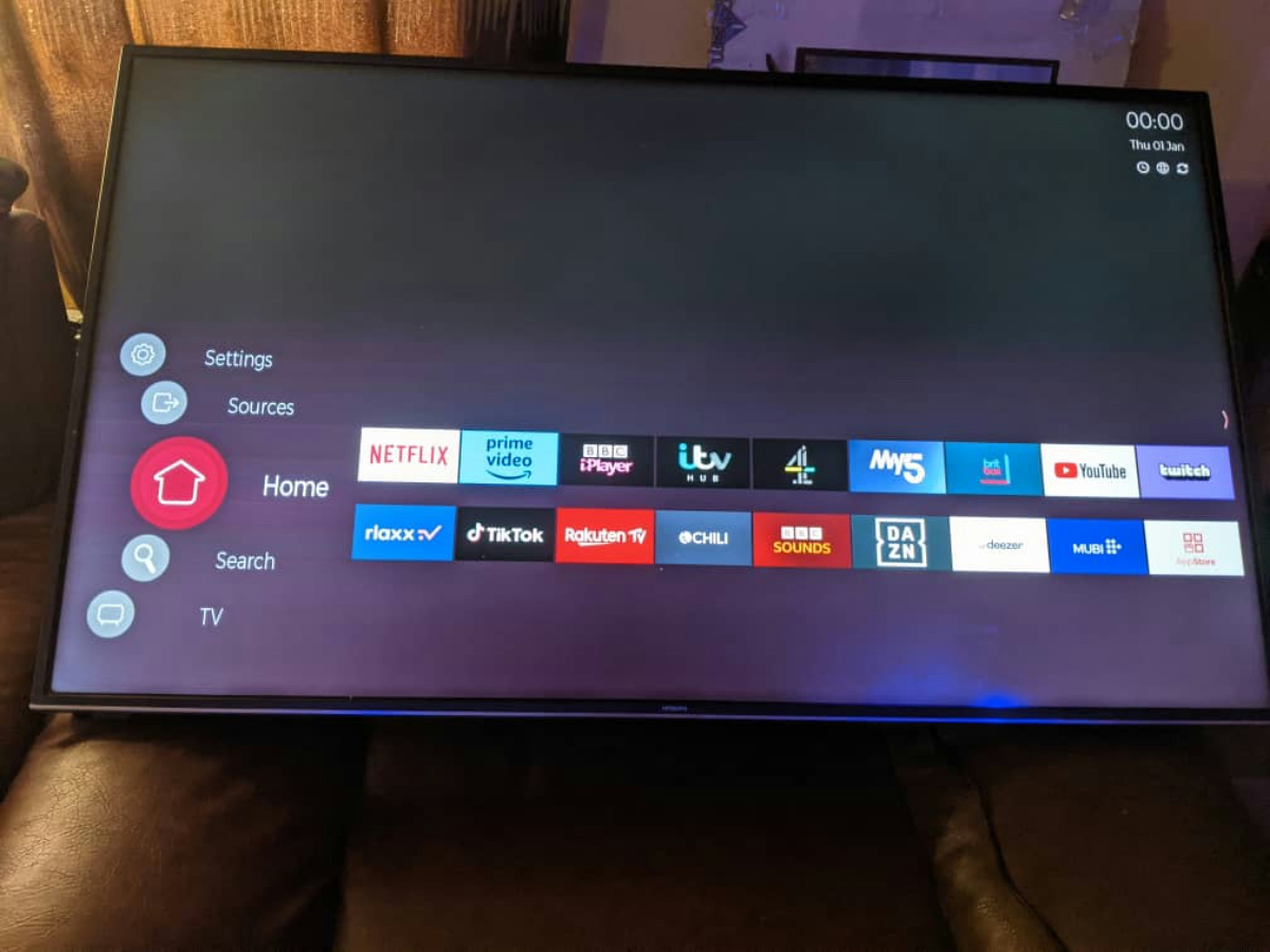
Before proceeding with the installation of the RoyalPPV IPTV service using the included iBOPro Player subscription value of 15$, it is crucial to ensure that your smart TV is adequately prepared. The first step involves checking the compatibility of your smart TV with the iBOPro Player. Not all smart TVs support this application, so it is advisable to confirm that your device operates on a compatible operating system such as Android TV or others that support the application.
Next, internet connectivity is essential for streaming IPTV services effectively. Thus, ensure that your smart TV is connected to a reliable Wi-Fi network. You can check the connection status by navigating to the settings menu and selecting the network section. If your connection is unstable or slow, consider troubleshooting your internet connection, as high-speed internet is vital for smooth streaming experience while using your smart TV IPTV.
Furthermore, adjust any preliminary settings on your smart TV that may hinder the installation process. This can include enabling installation from unknown sources, which is often required for downloading non-standard applications like iBOPro Player. Navigate to the device settings, usually in the security section, and toggle the setting to allow installations from unknown sources.
Additionally, updating your smart TV’s firmware is recommended as this can improve performance and compatibility with the newer applications. Ensure that your device is running the latest available updates from the manufacturer. After confirming compatibility, establishing a stable internet connection, and adjusting the settings, you will be ready to install IPTV solutions like the RoyalPPV IPTV service seamlessly.
Installing the iBOPro Player on your smart TV is a fundamental step towards accessing the RoyalPPV IPTV service. This guide will delineate the step-by-step process to ensure a smooth installation and configuration.
To begin, verify that your smart TV is connected to the internet. Then, visit your device’s app store. Search for the “iBOPro Player” using the search functionality provided. Once located, select the app, and click the install button. The download process may vary in duration depending on your internet speed. Wait for the installation to complete.
After successful installation, open the iBOPro Player on your smart TV. Prior to configuring the RoyalPPV IPTV service, ensure that you have your login credentials ready; these usually include your username and password, which you must obtain when subscribing to RoyalPPV IPTV.
Next, on the iBOPro Player’s main interface, navigate to the settings or configuration section. Look for the option to add a new IPTV playlist. Here, you will input the necessary details that facilitate the integration of the RoyalPPV IPTV service. Typically, this would include entering your M3U URL or any other required information as provided by your IPTV subscription email. This URL acts as a gateway to access a variety of channels available through the RoyalPPV IPTV service.
Once you have entered the required details, save the configuration changes and return to the main menu. At this point, you should see the RoyalPPV channels populating. Wait for them to load completely. With everything set up, you can now explore the IPTV guide within the iBOPro Player to enjoy streaming your favorite content.
Following these steps will enable you to successfully install and access the RoyalPPV IPTV service on your smart TV. Happy streaming!
Installing the RoyalPPV IPTV service on your Smart TV using the iBOPro Player can provide an excellent streaming experience, but users sometimes encounter challenges during setup or usage. This section aims to address common issues and guide you through effective solutions.
One prevalent problem is connectivity issues, which can occur due to a weak internet connection or incorrect network settings. To resolve this, ensure that your Smart TV is properly connected to your Wi-Fi network. A direct Ethernet connection may provide a more stable connection as opposed to relying on wireless signals. If you frequently face buffering issues, consider running a speed test on your internet. A minimum bandwidth of 10 Mbps is generally recommended for reliable streaming with services like RoyalPPV IPTV Canada.
Another common issue is related to buffering while streaming content. This can be attributed to either your internet speed or the server stability of the IPTV service. Here are a few strategies: first, try closing any unnecessary applications running in the background on your Smart TV, as they can consume bandwidth. Second, try changing the streaming quality settings within the iBOPro Player. Lowering the resolution might help you achieve smoother playback when high-definition isn’t a requirement.
Moreover, keeping the iBOPro Player and your Smart TV updated is crucial. Ensure that your applications and device firmware are running the latest versions to mitigate potential compatibility issues. If you encounter specific error messages, you can often find quick solutions by searching the IPTV guide or forums dedicated to RoyalPPV IPTV support.
In conclusion, addressing these common installation issues will not only enhance your experience with the RoyalPPV IPTV service but also ensure a seamless and enjoyable streaming journey. Implementing the above solutions can significantly reduce frustration associated with connectivity troubles and performance hiccups.

Explore the Best IPTV Service with Global Channels – Watch Thousands of Live TV Channels, PPV Events, Movies, & TV Shows Anytime, Anywhere.
© 2011-2026 RoyalPPV, All rights reserved
